
ClearTouch Integration
ClearTouch requires a different "token" (password) for every combination of alert and site. This means it doesn't work well with variables and creates more manual work to set up and test.
If you have 5 sites and 4 alert types (e.g. evacuated, hold, lockdown, shelter, etc), that means creating and testing up to 45 integrations:
- 4 integrations (for each alert type) times 2 (if you also want a drill equivalent of each alert type)
- times 5 sites
- plus 5 resolutions (one for each site)
If this level of setup and testing is feasible for you, see below for step-by-step instructions.
- In ClearTouch, gather the details.
-
On the dashboard, choose Alert (in header).
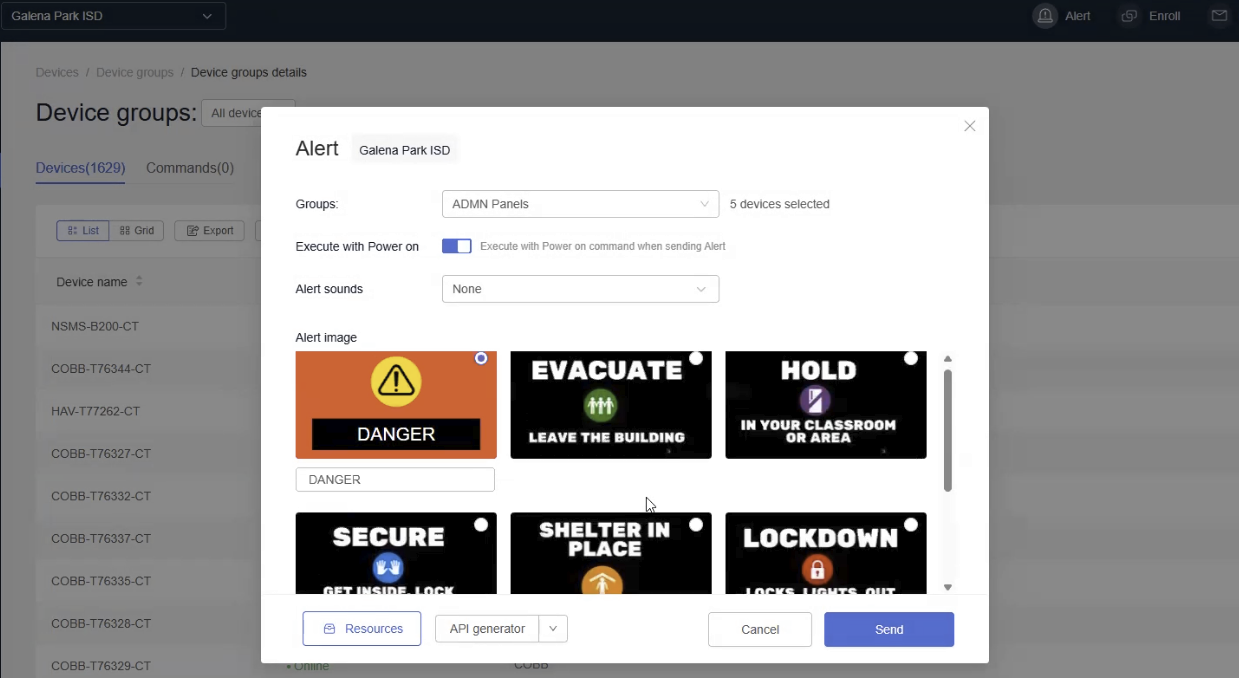
- Chose a group (that corresponds with a site).
- Optionally select an alert sound and alert image.
- Choose API generator.
-
Open the downloaded file in a text editor.
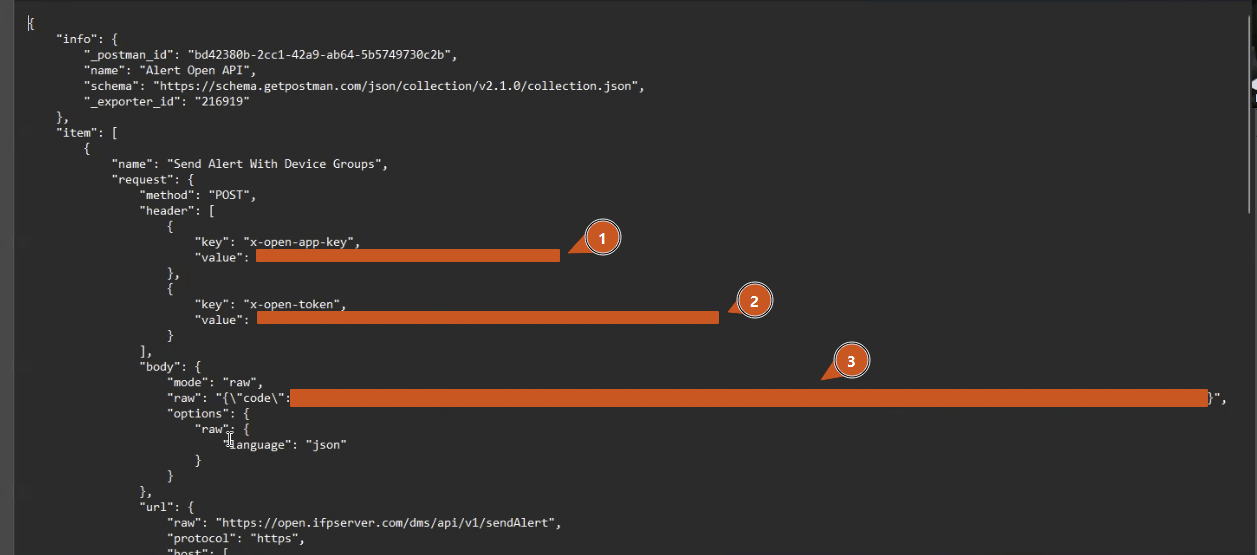
- In the first item, "header" section, note the value for the x-open-app-key ("1" in the screenshot above) and the value for the x-open-token ("2" in the screenshot above).
- In the "body" section, copy the value for raw ("3" in the screenshot above).
- Find and replace all the backslash-quotes (\") with quotes only (").
- Copy your updated value (the version without the backslash-quotes).
- Wait to paste this into CatapultEMS' "Content of Payload" (instructions below).
-
- In CatapultEMS, create a new integration for initiating alerts.
- Name: Displays (ClearTouch), SITE_NAME (Replace SITE_NAME with the school/site you exported from ClearTouch.)
- Bearer Token: x-open-app-key:APP_KEY_VALUE|x-open-token:TOKEN_VALUE (Replace APP_KEY_VALUE and TOKEN_VALUE with the values you got from "header" above—no quotation marks.)
- Payload URL: https://open.ifpserver.com/dms/api/v1/sendAlert
- Content of Payload (Copy from the body that you updated to not have backslash-quotes.)
- Event Trigger
- Initiate Action Alert
- Initiate Drill (If you want a different alert image/sound for drills, you need to create a separate integration for drill instead of selecting both here. The advantage of grouping drill and Action Alerts, is that it ensures your drills test the integration used for the real action alert. The disadvantage is it isn't clear from looking at the ClearTouch screen whether it is real or a drill.)
- Action Types: select the alert type you exported from ClearTouch.
- Repeat the first two steps for each alert type at the current site.
- Return to the text file from step 1 above (for a text file from the current site).
- Scroll down to the item named "Cancel Alert to Groups". Under that "header" section, note the value for the x-open-app-key and the value for the x-open-token.
- In the "body" section, copy the value for raw.
- Find and replace all the backslash-quotes (\") with quotes only (").
- Copy your updated value (the version without the backslash-quotes).
- Wait to paste this into CatapultEMS' "Content of Payload" (instructions below).
- In CatapultEMS create an additional integration for clearing the ClearTouch screens after an alert resolves. The payload is the same for all alert types, so you only need one resolve integration per site.
- Name: Displays (ClearTouch), Resolve - SITE_NAME
- Bearer Token: x-open-app-key:APP_KEY_VALUE|x-open-token:TOKEN_VALUE (Ask Cleartouch to fill in the secret key—no quotation marks.)
- Payload URL: https://open.ifpserver.com/dms/api/v1/cancelAlert
- Content of Payload (Copy from the body that you updated to not have backslash-quotes.)
- Event Trigger:
- Resolve Action Alert
- Resolve Drill
- Action Types: Select all (or match the ones you selected for the initiation integration).
- Repeat all the previous steps for each site.
Old, experimental method for gathering details from ClearTouch
- In ClearTouch, gather the following details
- On the dashboard, look for the Organization Code. Copy and paste into the payload on the CatapultEMS side. It should replace the 0000 after “code”:
- In the left pane, choose Devices > Device groups.
- In the main pane, drop down menu, choose the device group you want. Copy the number from the end of the URL and paste into CatapultEMS under the MAPPED_SITE_ID section. Repeat for each site.
- In CatapultEMS, create a new integration for initiating alerts.
- Name: Displays (ClearTouch), Initiate FILL_IN_NAME_OF_ALERT
- Bearer Token: x-open-app-key:FILL_IN_KEY|x-open-token:FILL_IN_X_OPEN_TOKEN (ask ClearTouch to fill in the key—no quotation marks)
- Payload URL: https://open.ifpserver.com/dms/api/v1/sendAlert
-
Content of Payload (copy from the body that you updated to not have backslash-quotes:
{
"code": "00000",
"groupIds": ["$$MAPPED_SITE_ID$$"],
"url":
"https://www.catapultems.com/downloads/cleartouch/$$ACTION_TYPE$$.jpg",
"md5": "$$MAPPED_ACTION_TYPE_ID$$"
}
- Event Trigger:
- Initiate Action Alert
- Initiate Drill
- Action Types: Select all (unless you want fewer).
- Fill in the $$MAPPED_ACTION_TYPE_ID$$ with the md5 codes for each image.
- In CatapultEMS create a second integration for resolving the alerts.
- Name: Displays (ClearTouch), Resolve
- Bearer Token: x-open-app-key:FILL_IN_KEY|x-open-token:FILL_IN_TOKEN (Ask Cleartouch to fill in the secret key—no quotation marks)
- Payload URL: https://open.ifpserver.com/dms/api/v1/cancelAlert
-
Content of Payload:
{
"code": "00000",
"groupIds": ["$$MAPPED_SITE_ID$$"]
}
- Event Trigger:
- Resolve Action Alert
- Resolve Drill
- Action Types: Select all (or match the ones you selected for the initiation integration).
- Fill in the MAPPED_SITE_ID section with the same values you specified for the initiation.